7. Adjust how it looks
On this page: You adjust what the blocks on your store show, how they're laid out and their colors. It takes about 10 minutes.
There are two places to change the look. Use the one that fits what you want to change.
| What you want to change | Where to change it |
|---|---|
| What shows (dates, sorting and so on), layout and size | "Design" in the app |
| Colors, spacing, rounded corners, maximum width and number of items | The settings of the block you added, in the theme editor |
The Design page
Open "Design" in the app's left menu. It's available on every plan.
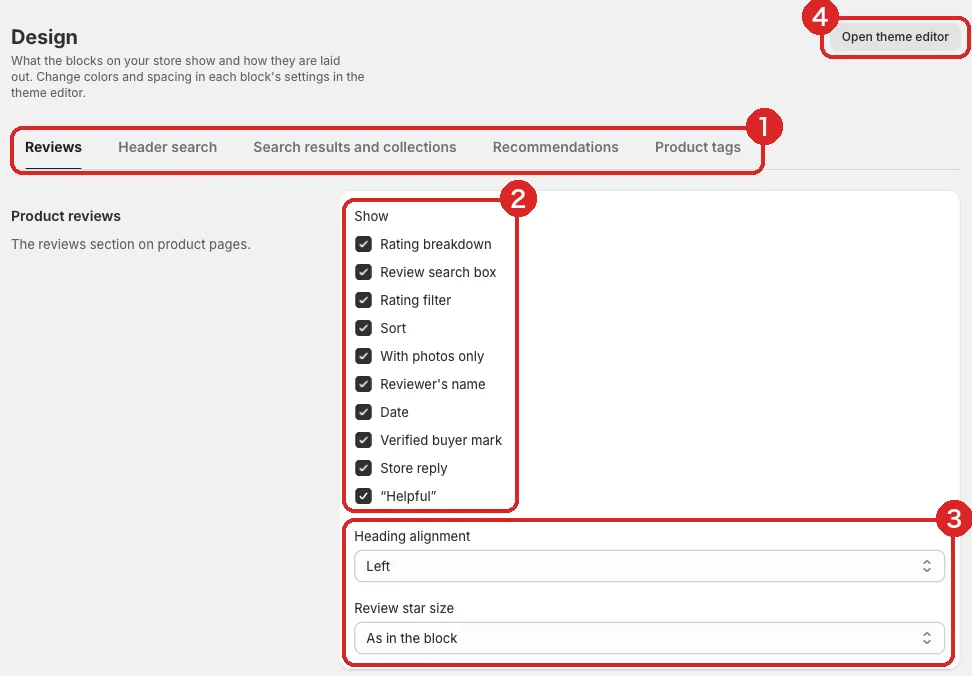
- Tabs: Choose the kind of block to change: "Reviews", "Header search", "Search results and collections", "Recommendations" or "Product tags"
- Show: Items you uncheck no longer appear on your store
- Layout and size: Choose the alignment, star size, how many cards show at once, the number of columns and so on. "As in the block" keeps the block's own setting
- Open theme editor: Use this to change colors and spacing
After a change, save it with the save bar that appears at the top of the screen. Changes on every tab are saved together. Once saved, reload your store's page to check.
What you can't hide
The "Incentivized" mark on reviews and the "About verified purchases" explanation can't be hidden from the Design page, because shoppers must be told about them.
The side tab's shape
Under "Side tab" on the "Reviews" tab, you can choose one of four shapes for the tab.
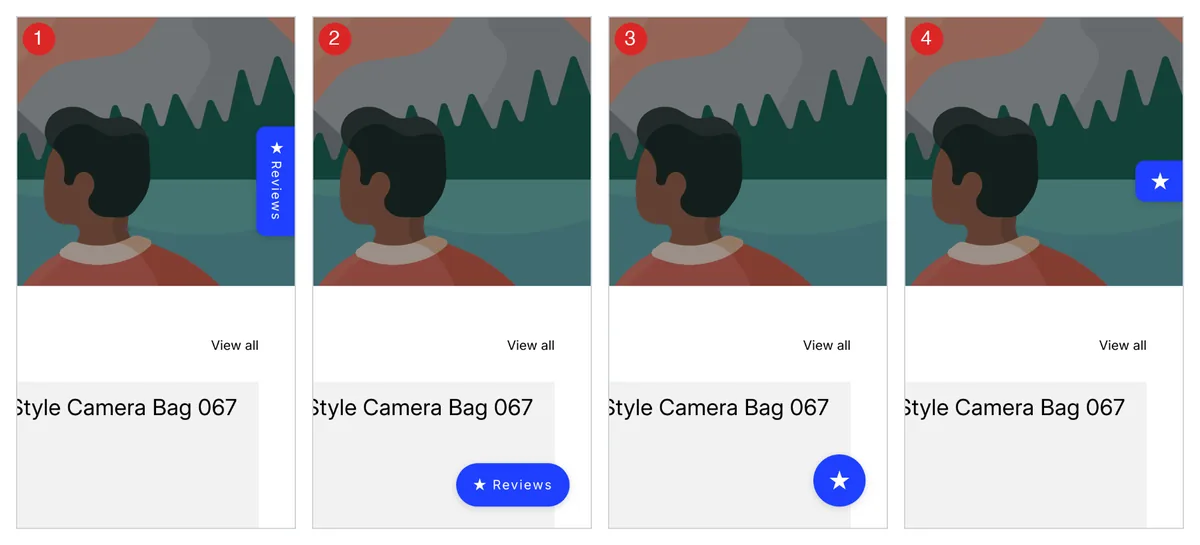
| Shape | What it looks like |
|---|---|
| 1. Vertical tab | "★ Reviews" running vertically at the edge of the screen (the default) |
| 2. Wide button in the corner | A wide "★ Reviews" button in a bottom corner of the screen |
| 3. Round button in the corner | A round button with only a ★, in a bottom corner of the screen |
| 4. Small ★ on the edge | A small tab with only a ★, at the edge of the screen |
Choose left or right with "Side", and the height with "Position from the top" (the corner buttons always stay in a bottom corner). Uncheck "Show on phones" to show the tab on computers only.
What you change in the theme editor
Change colors, spacing, rounded corners and the number of items in the theme editor, in the settings that open when you select a block you added.
- Maximum width: Sets how wide the block can get, for Search Results Page, Collection Filter, Product Reviews, Customer reviews, Recommended Products and Related tags. It never gets wider than its section
- Colors: Star color, accent color, text color and more
- Number of items: How many products or reviews show on one page
Changes in the theme editor don't show on your store until you click "Save" in the top right.