1. Install and first sync
On this page: You open the app and check that your product data has loaded. It takes about 5 minutes.
Open the app
Install Marutto Search from the Shopify App Store. Then open "Marutto Search" from "Apps" in the left menu of your Shopify admin.
The first time you open it, you start on the Free plan. You can choose a paid plan later on the Plan page.
Syncing your product data
Marutto Search reads your store's products before it can search them. This reading is called "syncing".
- The first sync starts by itself the first time you open the app. You only need to wait
- When you add or edit a product, the change is picked up automatically within seconds. You don't need to sync each time
- On the Free plan, the app's home page shows a "Setup guide". When its first step, "Sync your product data", is marked as done, the sync has finished
Check the status on the home page
Once you close the setup guide, the home page shows this.
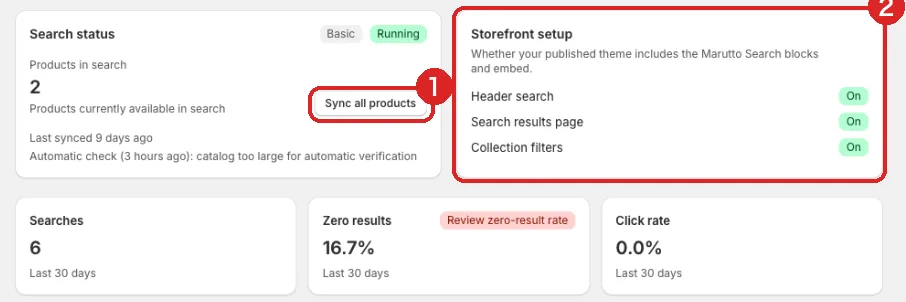
- Sync all products: Reads all your products again. You don't normally need to click it. Use it when a product doesn't show up in search
- Storefront setup: Shows whether the blocks are in your theme. You get them to "On" in the next step
You're ready when "Products in search" matches the number of products you want shoppers to find.
Products that don't appear in search
Draft, unpublished and archived products don't appear in search. Check the product's "Status" and its sales channels ("Online Store").
Product limit on the Free plan (50 products)
On the Free plan, you can use Marutto Search's search results page if your store has up to 50 published products.
- Over 50 products, your store keeps using Shopify's standard search
- The home page tells you that you're over the limit, and how to try a paid plan during the free period
- As you get close to the limit, the home page shows how many products you have left
If your store has more than 50 products, choose Basic or Pro. The 14-day free period can be used once, on either Basic or Pro (see Plans and the free period).
Next: 2. Add search to your store. How to add the blocks to your theme.