6. Switch from another review app
On this page: You move the reviews you collected with Judge.me or another app to Marutto Search, with their photos and replies. It takes about 30 minutes (not counting the wait for the export email).
If you didn't use another review app, skip this page and go on to 7. Adjust how it looks.
What moves and what doesn't
What moves
- Rating (stars), title, review text, reviewer name and date
- Your store's replies
- Photos (copied into your store's files, so they stay after you remove the old app)
- Whether each review is published or hidden (you choose when you import)
- Verified purchase marks (you choose when you import), and incentivized marks (Loox)
What doesn't move
- Customers' email addresses and IP addresses (they're not read)
- Videos, and questions and answers (Q&A)
- Reviews of the store as a whole (with no product), and reviews marked as spam (reviews you hid in Judge.me move over and stay hidden)
Overview
- Export your reviews to a CSV file in the old app
- Import them into Marutto Search
- Check the results
- Switch what your store shows
- Remove the old app and export the stars
Keep the old app until the end
Don't uninstall the old app until you reach step 5. Junip says it deletes your data within 2 days of uninstalling. Keep the exported files until the move is finished too.
1. Export from the old app
These steps follow each app's help pages (as of October 2026). Button names are written as each app shows them. If the screens have changed, see the linked help page.
Judge.me
- Open "Reviews" in Judge.me
- From "Export" in the top right, choose "Export published reviews"
- Over 25 reviews, a download link is sent to your notification email address. The link expires after about 3 hours
- Hidden reviews can be exported to a separate file from the same "Export" menu. If you import that file too, they come in hidden
- Don't import a file of deleted reviews
- Judge.me's export doesn't include verified purchase marks, so purchase verification can't be carried over
- For details, see Judge.me's help
Loox
- Open the "Product reviews" tab in "Manage Reviews"
- From the "⋯" menu, choose "Export to .csv"
- The "Store reviews" tab (reviews of the store as a whole) can't be moved to Marutto Search
- For details, see Loox's help
Junip
- Open "Reviews" and choose "All" for the time period
- Click "Export" in the top right. When it's ready, click "Download" (it's also sent by email)
- Your data is deleted within 2 days of uninstalling. Always export before you remove the app
- For details, see Junip's help
Yotpo
- Open "Manage → Reviews"
- Click "Export" in the top right
- A download link is sent by email. It can take about an hour
- Reviews from the last 24 hours may be missing. Export again a few days later and import that file: only the missing reviews are added
- Site reviews (reviews of the store as a whole) aren't imported
- For details, see Yotpo's help
Okendo
- Open "Settings → Import/Export"
- Click the export icon for Reviews, choose a time period and click "Request Export"
- A download link is sent by email
- For details, see Okendo's help
Stamped
- To export all your reviews, you need to ask Stamped's support (support@stamped.io)
- For details, see Stamped's help
Shopify Product Reviews (Shopify's old app)
It was discontinued in 2024, and you can no longer export from it. If you have a CSV you exported earlier, you can import it as it is.
Other apps, or a spreadsheet you made
You can import any file with the following columns. Headings can be in English or Japanese, and the columns can be in any order.
| Content | Heading examples | Required |
|---|---|---|
| Product | product_id, product_handle, 商品ID, ハンドル | One of the two |
| Rating | rating, 評価, 星 (a whole number from 1 to 5) | Yes |
| Review text | body, 本文, レビュー | Yes |
| Reviewer name | author, 投稿者名, ニックネーム | Yes |
| Date | created_at, 投稿日 | Optional |
| Title | title, タイトル | Optional |
A CSV saved from Excel in Japanese (Shift_JIS) can be read too. If you make the sheet in Excel, use a handle column rather than product IDs. Excel turns long numbers into something like 7.01E+12.
2. Import into Marutto Search
- In the app, open the "Settings" tab of "Reviews" and go to "Moving and data" at the bottom
- Under "Import", choose the CSV file you exported
- Check the options that appear
- Click "Import CSV"
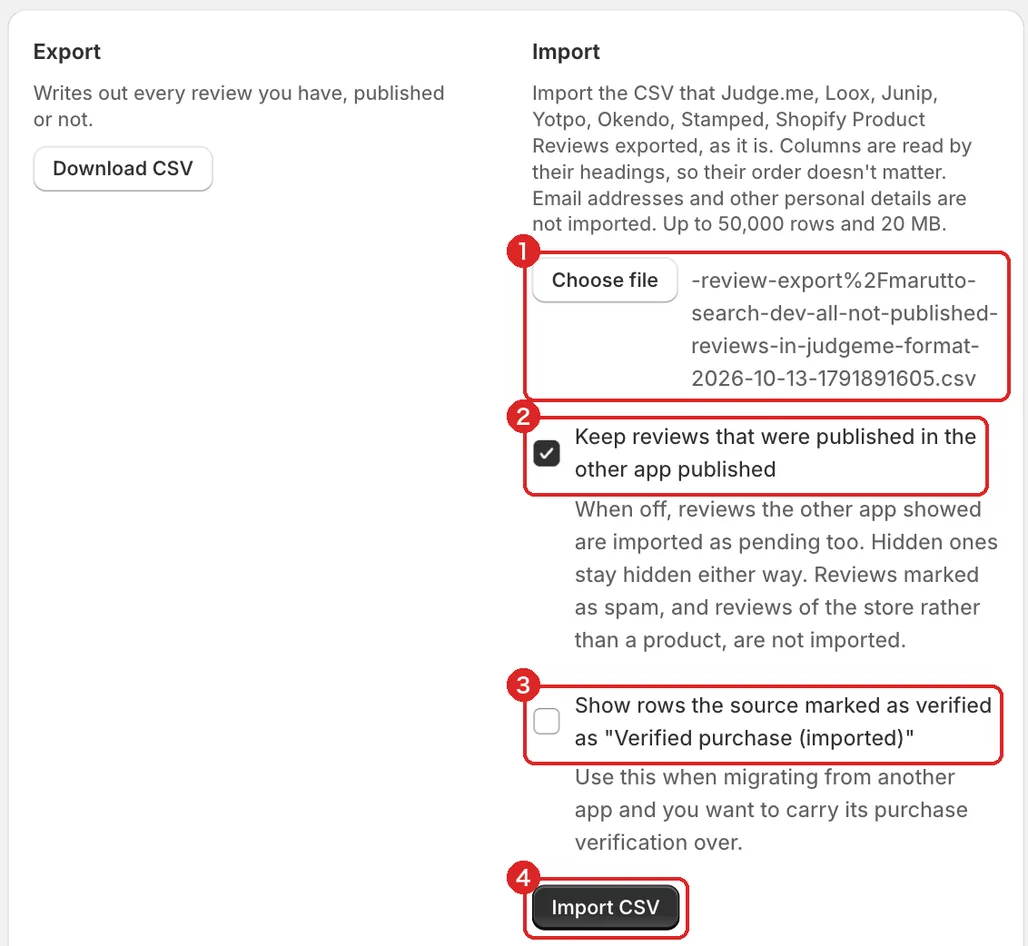
- Choose file: Choose the CSV you exported from the old app
- Keep reviews that were published in the other app published: On by default. Turn it off to bring published reviews in as pending too, so you can check them on the "Reviews" tab before publishing. Reviews that were hidden stay hidden either way
- Show rows the source marked as verified as "Verified purchase (imported)": Marks the reviews whose purchase the old app verified. Your store shows them as "Verified purchase (imported)", so shoppers can tell them apart from "Verified purchase", which Marutto Search checked itself
- Import CSV: Starts the import
To move photos too, click "Enable photo uploads" in this area and approve the permission. If you've already approved it, the button doesn't show.
Don't open and save the file in Excel
If you open the exported file in Excel and save it, product IDs turn into something like 7.01E+12, and those rows can't be imported. Choose the exported file as it is.
You can import up to 50,000 rows and 20 MB at a time. For more, export from the old app in smaller time periods.
3. Check the results
The import runs in the background, and it keeps going if you close the page. When it's done, the results show in the same place.

- Imported: How many reviews moved
- Skipped: Reviews already imported, marked as spam, or of the store as a whole
- Not imported: Each row number is shown with the reason
- Photos moved: How many photos were copied into your store's files
Here are the main reasons rows aren't imported, and how to fix them.
| Message | How to fix it |
|---|---|
| The product ID became an exponent (like 7.01E+12), which happens when the file is saved from Excel | Export again from the old app and import the file without saving it in Excel |
| The store has no such product | The review is for a product you deleted. You can leave it |
| There is no review text, or There is no reviewer name | The review was empty in the old app too. Fix the CSV if you need to |
| The rating isn't a whole number from 1 to 5 | Change the rating column to whole numbers from 1 to 5 |
If you import a fixed file or a later export, the same review is never added twice. Only reviews that aren't in yet are added.
4. Switch what your store shows
- In the theme editor, remove or hide the old app's blocks (the reviews section on product pages, stars, carousels and so on)
- In "App embeds", turn off the old app's embeds
- Add Marutto Search's blocks (see 5. Get started with reviews)
- Click "Save"
If the old app was sending review request emails, stop them first, then switch to Marutto Search's requests (see "Review requests" in 5. Get started with reviews). If both are running, customers get two requests.
5. Remove the old app and export the stars
- When the move is finished, uninstall the old app
- In Marutto Search, under "Stars and search" on the "Settings" tab of "Reviews", check that "Export product ratings" is on. The first time, click "Allow and export"
Once the stars are exported, your theme's product lists and other apps that read ratings use your Marutto Search reviews.
Why export after removing the old app
Loox says it deletes the products' rating values when you uninstall it. If you exported first and the stars disappear, Marutto Search writes them again by the next day.
If you keep using the old app instead
You don't need to import anything. The old app's stars show in Marutto Search's search results without any setup, and shoppers can filter by rating.
Next: 7. Adjust how it looks. How to change what shows and how it is laid out.