3. Search settings
On this page: You adjust what is searched, how results are ordered and the search suggestions to suit your store. Everything also works as it is. It takes about 5 minutes.
The settings are under "Settings" in the app. Use the tabs at the top to switch between "Search", "Search suggestions", "General" and "Search rules". After a change, save it with the save bar that appears at the top of the screen.
Search tab
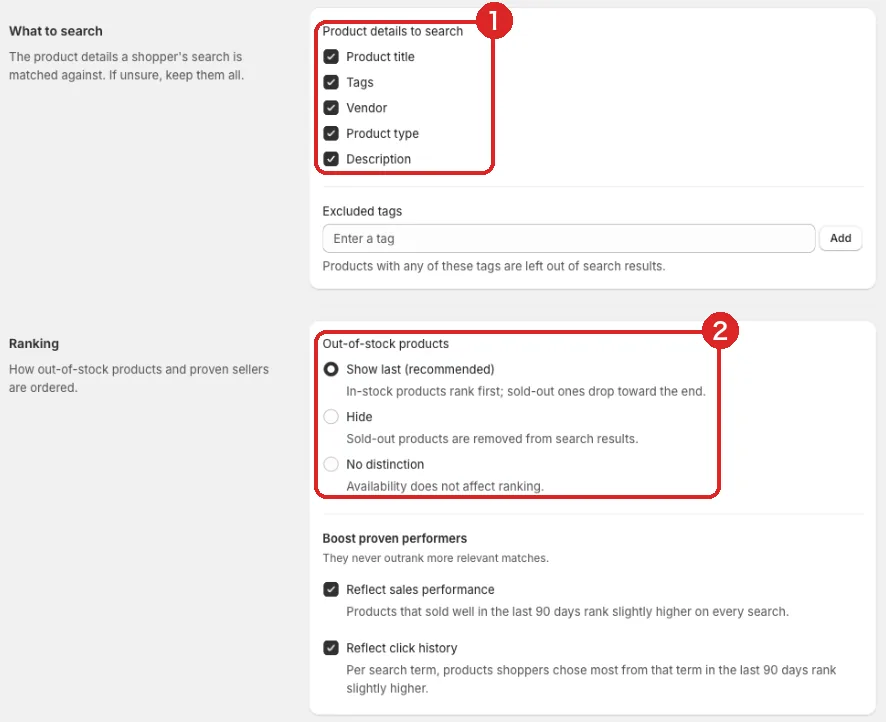
- What to search: Which product details a shopper's search terms are matched against. If you're not sure, leave them all selected
- Ranking: How out-of-stock products are handled, and whether products that sell well or get chosen often move up a little
- Excluded tags: Products with these tags don't appear in search results (samples, items not for sale and so on)
- Out-of-stock products: Choose "Show last (recommended)", "Hide" or "No distinction". The default is "Show last (recommended)"
- Product metafields (Pro): Use metafields such as material, ingredients or model number for search and filters too
- Field weights (Pro): Adjust the ranking, for example to move products whose "Product title" matches higher up
Search suggestions tab
Shows words around the search box that give shoppers ideas.
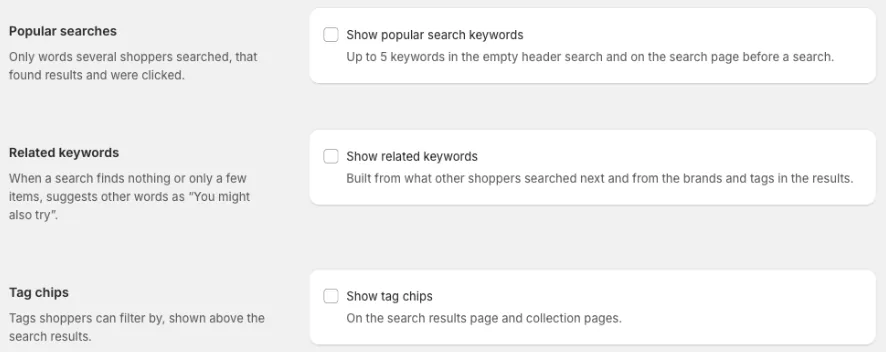
- Popular searches: Lists frequently searched words below the search box. You can also pin words, and choose words you never want shown
- Related keywords: Suggests other words to shoppers whose search found nothing
- Tag chips: Shows tags above the search results so shoppers can filter with a tap. You can also show them on product pages, as "Search by tag" (add the "Related tags" block to the product page in the theme editor)
General tab
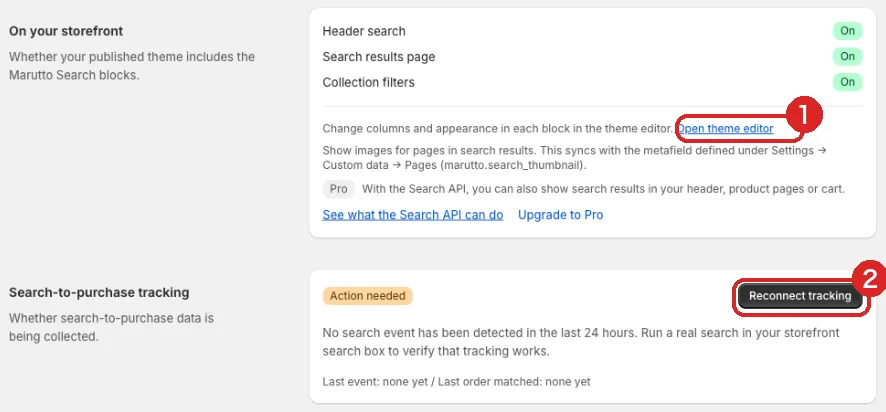
- Open theme editor: The number of columns and the look of each block are changed in that block in the theme editor
- Reconnect tracking: Click this when "Search-to-purchase tracking" shows "Action needed". Afterwards, run one search on your store
- When search runs: How long search waits after a shopper stops typing. The default, 0.5 seconds, is usually fine
- Product content language: Usually leave it on "Automatic (…)". The brackets show the language it detected
After changing settings
Changing the metafields or the language starts re-reading your products in the background. It can take a few minutes before you see the change. After a language change, your store shows Shopify's own search results until the re-reading finishes.
Search rules tab (Pro)
Rules for adjusting search results by hand, such as synonyms and redirects. They're explained in 4. Search improvements and search rules.
To learn more about how search works, see How search works and Admin controls.
Next: 4. Search improvements and search rules. How to cut down searches that find nothing.