2. Add search to your store
On this page: You add Marutto Search's blocks to your theme and switch your store's search over. It takes about 10 minutes.
There are three things to add. On the Free plan you can use the "Search Results Page" only. On Basic and up, you can use all three.
| What to add | Where it goes | Plan |
|---|---|---|
| Search Results Page | The search template | All plans |
| Collection Filter | The collection template | Basic and up |
| Header Search (embed) | App embeds in the theme editor | Basic and up |
Add the search results page
- In your Shopify admin, go to "Online Store → Themes" and click "Customize" on your published theme (you can also click "Open theme editor" in the setup guide on the app's home page)
- In the page selector at the top of the screen, choose "Search"
- Under "Template" in the left menu, click "Add section"
- On the "Apps" tab, choose "Search Results Page"
- Click "Save" in the top right
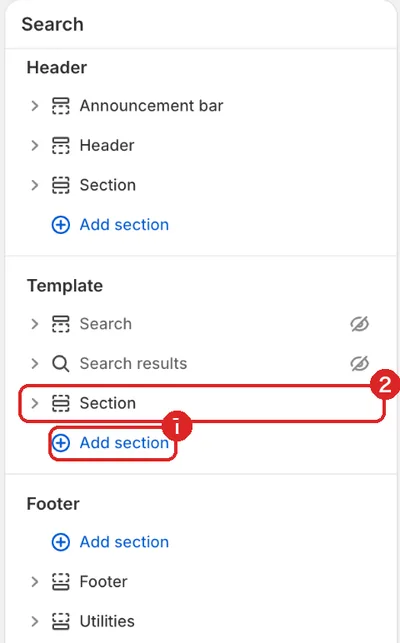
- Add section: Choose "Apps" → "Search Results Page" from here
- Once it's added, a new section appears in the template
Hide your theme's own search results
Your theme comes with its own "Search results" section. Hide it with its eye icon. If you leave it, the page shows two sets of search results.
Check it on your store
Search for something on your store. You're done when the results page has filters on the left and sorting at the top.
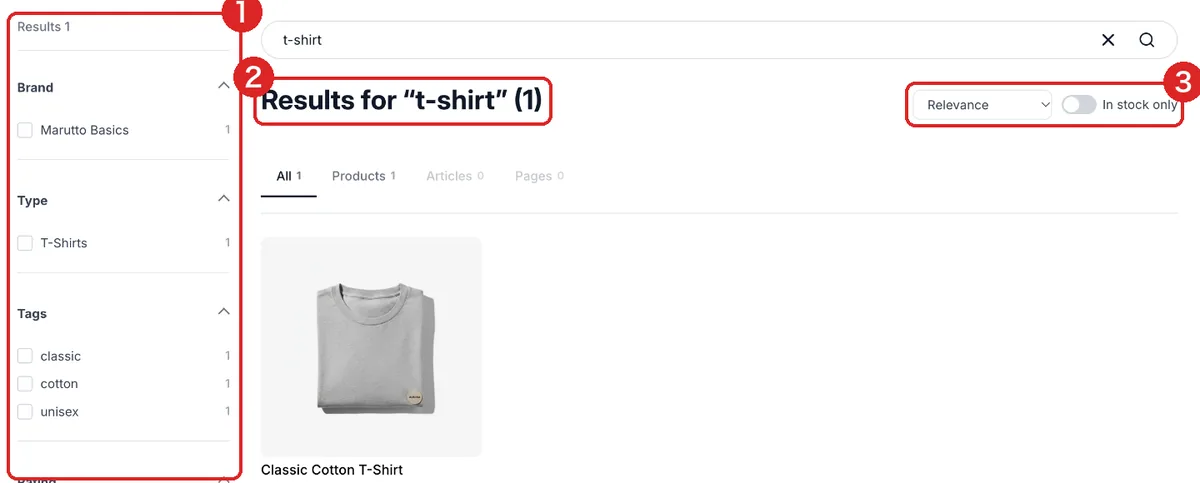
- Filters: Shoppers can filter by brand, type, tag, price and more. You choose which filters show in the block's settings
- Search results: Finds close matches even when the search has spelling variants or typos
- Sort and "In stock only": Shoppers can change the order of the results
Add the collection filters (Basic and up)
Your collection pages get the same filters and sorting as the search results page.
- At the top of the theme editor, choose the "Collections" template
- Click "Add section" → "Apps" → "Collection Filter"
- Hide the product list section that came with your theme, then click "Save"
Turn on header search (Basic and up)
When shoppers click the search icon in the header, product suggestions appear as they type.
- In the theme editor, open "App embeds" from the icons on the far left
- Turn on "Header Search (embed)"
- Click "Save"
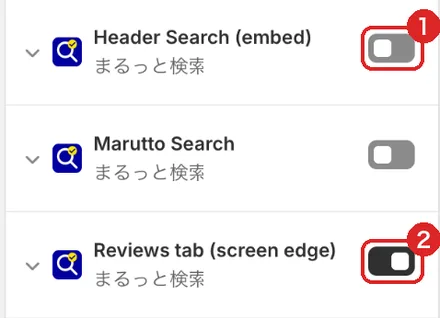
- Header Search (embed): When it's on, a search icon is added to your header
- Reviews tab (screen edge): Used for reviews (5. Get started with reviews)
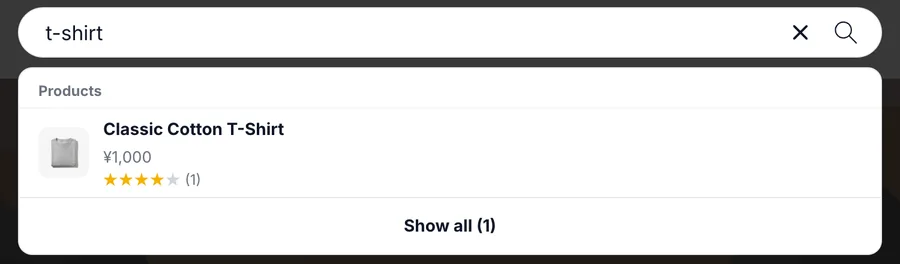
If you see two search icons
Check that the embed's setting "Hide the theme's own search icon" is on (it is by default). If header search doesn't appear because your theme's header is built in an unusual way, you can add the "Header Search" block to your header section instead.
Check it in the app
On the app's home page, under "Storefront setup", everything you added should show "On". Then you're done.
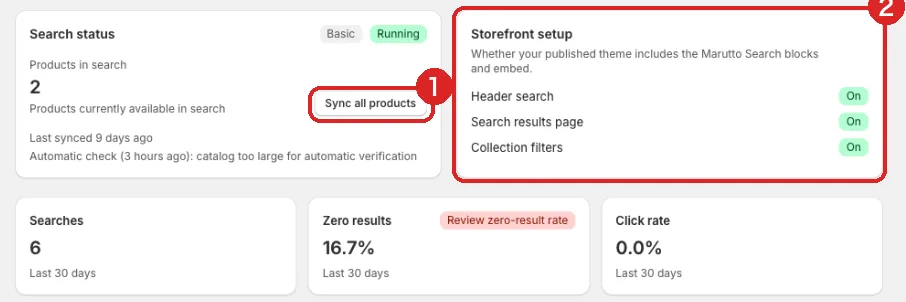
A row that still shows "Not set up" has a "Set up" link. Click it to open the theme editor on that template.
Next: 3. Search settings. How to change what is searched and how results are ordered.